Comparison
FramePDF vs Adobe Acrobat: do you really need a subscription for PDFs on your phone?
· · 6 min read · By Zenvoq Labs
Verdict: Pick FramePDF for everyday page jobs on your phone; keep Acrobat for legal-grade workflows.
FramePDF vs Adobe Acrobat at a glance
| Feature | FramePDF | Adobe Acrobat |
|---|---|---|
| Price | Free (ad-supported) | Free reader; paid plan for editing, export, compress |
| Account required | No | Adobe sign-in expected for most features |
| Works offline | Fully offline | Core viewing offline; many tools tied to cloud/account |
| Where your files go | Stay on your phone | Cloud features available; some tools process via Adobe services |
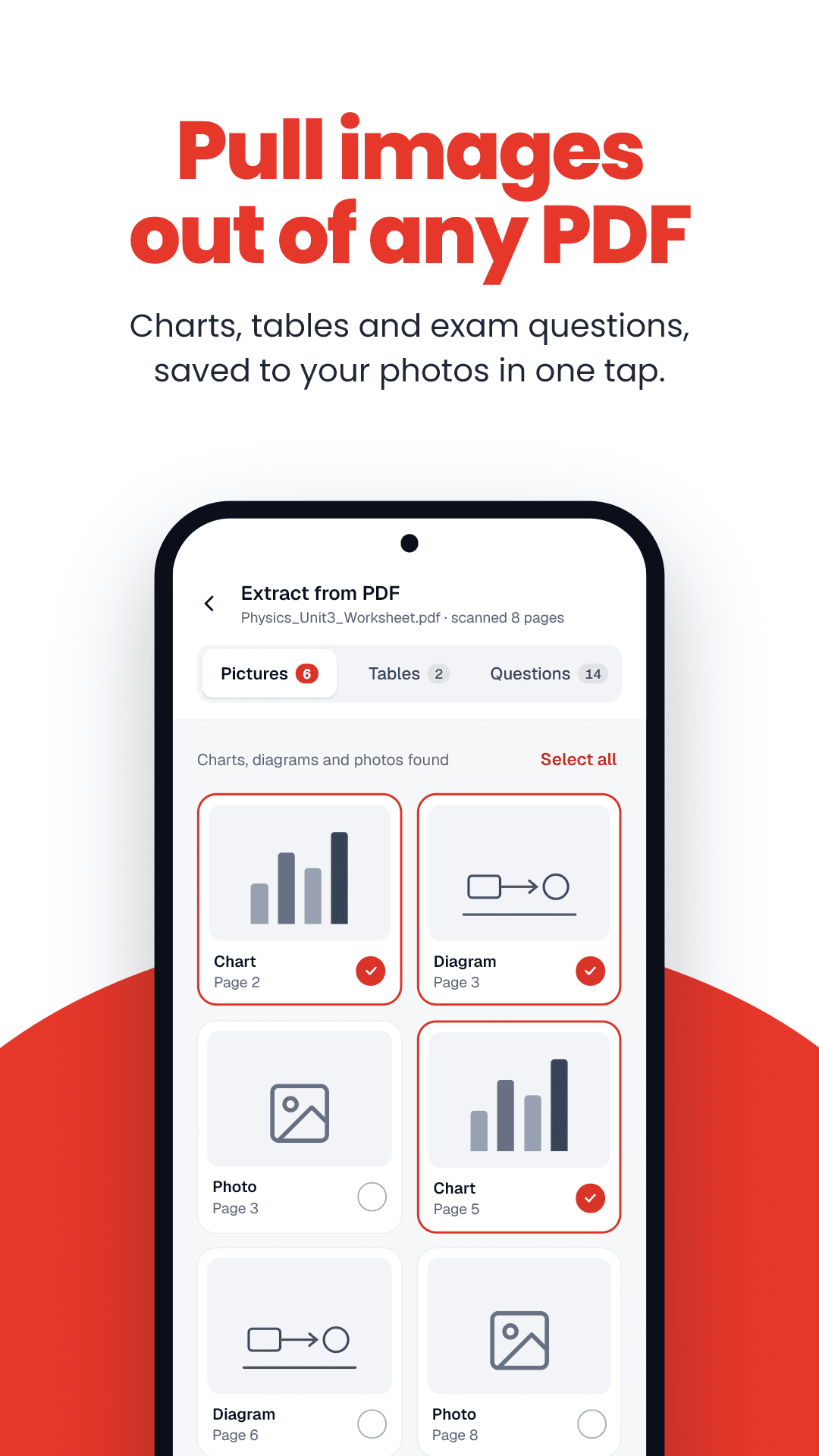
| Extract pictures, tables, QR codes | Yes, built in | Image export available on paid plans |
| Reorder / rotate / remove pages | Yes | Yes (paid plan) |
| Make a PDF smaller | Yes | Yes (paid plan) |
| Export to Word, JPG, PNG, ZIP | Yes | Yes (paid plan) |
| E-signatures, redaction, form building | No | Yes — Acrobat's strength |
| Platform | Android | Windows, Mac, iOS, Android, web |
Competitor details reflect publicly documented features at the time of writing. Apps change their plans often, so confirm on the vendor's own site before you decide.
The subscription question
Acrobat is genuinely excellent. It is also built for people who live in contracts, compliance paperwork and signed forms — and priced like it. If your actual need is “turn this PDF into photos”, “put these two scans in order” or “get this under the upload limit”, you are renting a cockpit to drive to the shop.
Most phone PDF tasks are small and repeated: a certificate for a form, a bill to forward, a page to share on WhatsApp. FramePDF is designed around exactly those jobs, and it does them without a login, a trial countdown or a paywall in the middle of the task.
Offline and private by design
FramePDF runs entirely on your device. There is no upload step because there is nowhere to upload to — your PDF never leaves the phone. That matters for ID scans, bank statements and medical documents, and it means the app still works on a train, in a village with patchy data, or in airplane mode.
Cloud-first suites make sense when you want files synced everywhere. When you want a file handled and gone, local processing is simply the lower-risk default.
Things FramePDF does that people don't expect from a free app
FramePDF can pull the pictures, tables, questions and QR codes out of a PDF, not just the pages. You can save any page to Photos, share it straight to WhatsApp or email, combine or reorder pages by dragging, then export to PDF, Word (.docx), JPG, PNG, one long image or a ZIP.
For exam and government forms — where the portal wants a PDF between two specific sizes — the same app (and the free web compressor at /tools/compress-pdf) makes files smaller to a target you set.
Where Acrobat is still the right call
We would rather you pick the right tool than the wrong one. If you need legally binding e-signatures, redaction that is certified to remove hidden data, forms you can author and distribute, or advanced OCR across a large archive, use Acrobat. FramePDF does not try to be that.
Choose FramePDF if…
- You mostly handle PDFs on an Android phone.
- You want pictures, tables or QR codes out of a PDF fast.
- You don't want to create an account or pay monthly.
- Privacy matters: you want files to stay on the device.
Choose Adobe Acrobat if…
- You send contracts that need e-signatures and an audit trail.
- You must redact sensitive text and prove it is gone.
- You build fillable forms or manage PDFs across a desktop team.
- You need one tool on Windows, Mac, iOS and Android.
Try FramePDF free on Android
Extract pictures and tables, reorder and combine pages, make PDFs smaller and export to Word, JPG or ZIP — offline, no account, nothing uploaded.
- Free, no sign-up
- Works with no internet
- Your files never leave your phone